

You can now evaluate the records and activities of text messaging in your HubSpot account across almost any dimension by creating custom reports in HubSpot SMS reporting. The emphasis of this blog will be on creating a customized report in your HubSpot account to track outgoing SMS text performance based on campaign.
This article provides a step-by-step guide to creating a HubSpot custom report for your SMS text messaging campaigns. This report will use the HubSpot text messaging integration from SMSPoh.
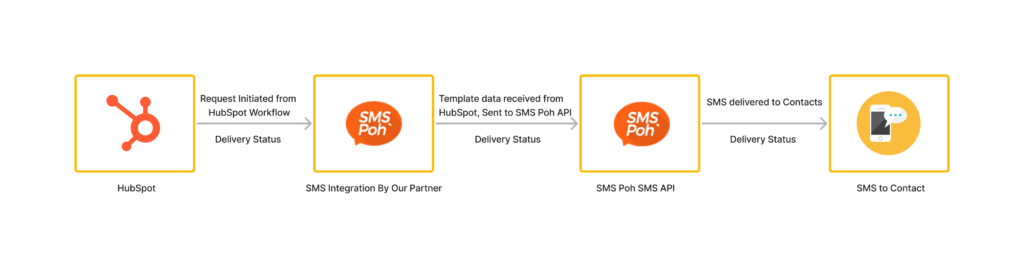
How to Create a HubSpot Text Messaging Custom Report
You need to make sure you have all the necessary accounts before setting up your reports. To connect HubSpot SMS analytics to your HubSpot account, you must have an account with both SMSPoh and HubSpot.
Step 1: Account Set Up
1. HubSpot Account
If you don’t already have a HubSpot account, you can get started with a free trial here.
2. SMSPoh Account
SMSPoh is the text messaging service we’re using to send text messages in HubSpot.
Step 2: Creating New Custom Properties
We’ll need to create a few new custom HubSpot properties to track our text message history. You can call them whatever you want, but here are some suggestions:
- Number of sent SMS – this is a number field that will measure the total number of text messages sent to a HubSpot contact
- Number of received SMS – this is a number field that will measure the total number of text messages received to a HubSpot contact
- Number of pending SMS – this is a number field that will measure the total number of text messages pending to a HubSpot contact
- Number of rejected SMS – this is a number field that will measure the total number of text messages rejected to a HubSpot contact
- Number of undelivered SMS – this is a number field that will measure the total number of text messages undelivered to a HubSpot contact
- Last SMS Sent Date – this is a date field that will indicate the last date a text message has been sent to a contact.
- Last SMS received Date – this is a date field that will indicate the last date a text message has been received to a contact.
Step 3 Creating Workflows
We now have to update our new custom properties every time a text message is delivered in HubSpot in order to track how well the performance of messages using HubSpot. We’ll develop a new contact-based workflow to accomplish that.
The Last SMS Sent Date field will be updated for the contact that sent the text message, and the Number of Sent SMS field will be increased by 1 for every sent SMS.
The Last SMS Delivered Date field for the contact who received the text message will also be updated, and the Number of Delivered SMS field will be increased by 1 for every delivered SMS.

For undelivered, rejected and pending messages, we use another workflow by using If/then branch for them.
If a message is sent and it couldn’t be sent out, it will update as undelivered, rejected, or pending based on its status and it will increase the number by 1.

Step 4 Creating a HubSpot SMS Custom Report
We’re ready to create custom HubSpot text messaging reporting now that we’ve created custom properties and built a workflow to update them. In a KPI format, this report measures the total number of text messages sent and the status of text messages per campaign.
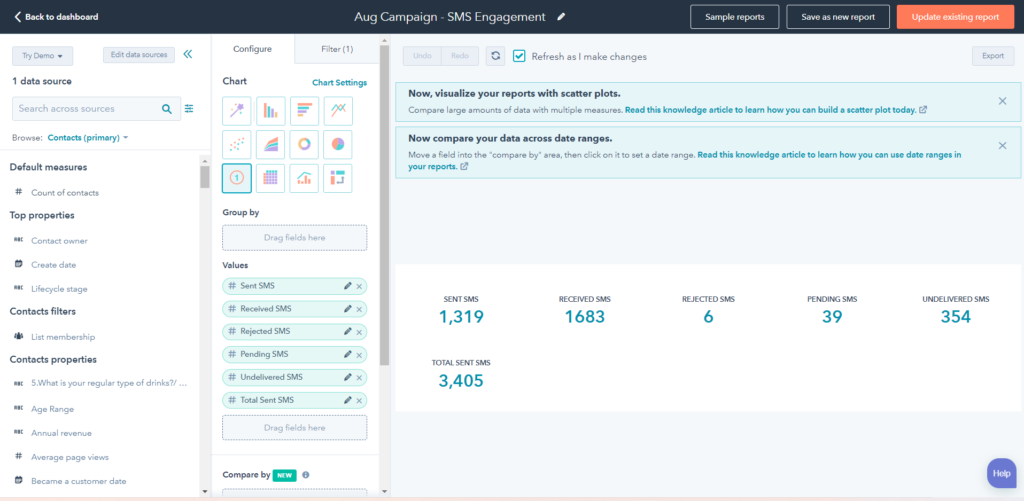
Creating Report

We will create a report using a Contact Data set. Now we will create the visualization for this custom report by selecting the following:
- Chart Type – KPI
- Filters – We use a time range of campaign
- Frequency – per campaign
- Configuration – Configure the KPI to display the total number of sent text messages and the status of text messages per campaign.
Please feel free to reach out to us if you have any questions about getting started with HubSpot text messaging or creating these custom SMS reports.


